
Outline
This document is designed to outline the Single Sign On (also known as SSO or Federated Login) process on the Madgex Job Board, and identify the requirements that the Identity Provider (IDP) service needs to fulfill in order for integration to be possible.
The requirements listed in the "Client Requirements" must be completed before Madgex start any integration work.
Madgex SSO process
The Madgex Job Board Platform only supports a Federated login for the following applications:
- Jobseeker Site
- Recruiter Services Site
- iOS App
Because SSO is an additional layer to the existing Madgex user accounts, a Madgex user account user record will still be created within the Madgex database.
SSO can be implemented on any one of the above sites. Where SSO is enabled, the same username should be used across any/all of the log-in processes. The CMS site will always have a separate username and password as this is not included in the SSO process.
Typical Federated Login Flow
The following is a typical federated login flow:
- The Relying Party (RP) clicks on login or reaches an access control page and is redirected to the login url on the Madgex website.
- The custom login handler performs a handshake with the Identiy Provider (IDP) who will identify the RP to obtain an authentication token.
- The login handler redirects the user to the IDP authentication page passing any relevant details.
- The user authenticates with the IDP and is redirected back to the custom login handler on the Madgex website.
- The custom login handler uses the returned token to query the IDP for details of the RP who authenticated. The custom Madgex login handler will then:
- Confirm if the RP is linked to an existing Madgex user account.
- If required, create a new Madgex user account with the details obtained from the IDP.
- Create Madgex user account security tokens to log the user into the Madgex website.
Madgex can sometimes integrate with other more custom flows (e.g. SAML integrations). However Madgex would need to complete a technical scoping exercise before this is agreed.
Please see the diagram below for the typical process flow:

Deleting Users
For the removal records of users in the Madgex Database who have deleted their account from the IDP service, an interface is available to invoke this process.
An endpoint ~/deleteuser/ is provided which calls a single method 'Process(HttpContextBase context)' . The endpoint only accepts POST requests and does nothing more than call the Process method of the interface. All validation and processing of the user deletion is handled in the client project implementation which is custom written in accordance to the context provided, i.e. Madgex will write custom code to invoke the appropriate platform delete user logic as per agreement on what is provided in the HTTPContextBase, e.g. cookie reference, user reference etc.
If the deleted user decides to create a new account, they will have to follow the normal flow as detailed in 'Typical Federated Login Flow'.
Updating SSO Users
We offer an endpoint that allows a client to update user data - specifically this endpoint was built with single sign on clients in mind.
The endpoint is exposed by a custom interface called 'ISingleSignOnUpdateUserService'. In the custom plugin you will need to implement the following two interface methods:
This endpoint handles POST requests only - once the interface has been implemented and added into the jobseeker installer, the ~/updatessouser route will be available
SSO Auto Login/Logout
On every request made to a site, we have the ability to check with an SSO provider (e.g. via a cookie accessible to the site) to see if a user has been logged in or out, then automatically log in or out the user to match.
Client Requirements
All of the following requirements must be completed before Madgex starts work on the SSO integration.
SSO Identity Provider Service Requirements
An IDP must provide the following services for Madgex to operate a federated login with them.
- A secure website where users are re-directed to sign in and register.
- From a user experience this site should clearly identify that they are creating a single sign on account to be able to access the Madgex site.
- This site must be able to support redirecting the user back to different Madgex URL’s depending on which part of the site the user was trying to access. If implementing a SAML integration, the HTTP Redirect method must be used.
- In addition, Madgex can pass certain user information across to the IDP, in circumstances where the users name and email address is known. The site may want to optionally support this to improve the users journey.
- A HTTP REST or SOAP service to retrieve details about the authenticated user.
- The default user details are:
- Confirmation that the user authenticated successfully
- A unique user identifier that cannot change
- The user's unique email address
- This must be unique – that is, two jobseekers must not exist with the same email address, but different IDs.
- The user's first name and last name
- Opt into internal Marketing (optional)
- Opt into 3rd Party Marketing (optional)
- Text or HTML Email preference (optional)
- If the optional parameters are not available from the IDP the Terms and Conditions must ensure the user is aware of the defaulted marketing preferences and advise an out of band process to change these settings.
- The default user details are:
- The HTTP REST or SOAP service must be able to return the user details based on an authentication token provided during the federated logon flow.
- If the site has an iOS app:
- A HTTP REST or SOAP service that can be passed the user’s authentication credentials that were captured on the Madgex iOS login screen.
- Due to the limitations of the mobile operating systems, Madgex do not support redirecting users to the IDP login screen. Instead, Madgex capture the username and password within iOS application.
- An account management page that Madgex can redirect the user to.
- A logout page that Madgex can redirect to. This page should clear any IDP session data before redirecting the user back to the Madgex jobseeker site.
- Full technical documentation for the integration, providing details of all the requirements above.
Client Setup Requirements
- An SSL certificate for the Live domain(s) to protect their user’s logon credentials.
- A fully functional UAT SSO environment. This must:
- Be accessible to Madgex from their Dev (81.144.253.114 and 158.106.95.106) and UAT (81.144.253.117, 52.211.110.48) IPs.
- Allow Madgex to create, update and delete User accounts at any point.
- Be permanently available during development and after launch.
- Confirmation that a fully functional Live SSO environment will be available at least 1 month before the launch of the integration. This must:
- Be accessible to Madgex from their Live (52.18.118.161, 52.18.125.30 and 52.18.196.130) IPs.
- Allow Madgex to create, update and delete user accounts at any point.
- Be permanently available.
Recruiter site set-up requirements
Please read the below instructions should you be setting up SSO on your recruiter site. Please disregard these instructions if you are only integrating with Jobseeker / iOS apps.
To provide some context to the below information:
- A 'user' is an individual wishing to log-in to the site.
- A 'recruiter' (or 'employer') is the company account that a user can belong to in order to post jobs on the companies behalf.
- A user can belong to one or many recruiters.
The general SSO setup for recruiters works the same as the jobseeker flow. When a user signs into the recruiter site it goes through a standard SSO flow of redirecting out to the IDP, after which user information is redirected back to Madgex. The main difference between the recruiter site and jobseeker site SSO solutions is that the recruiter site must also handle associating recruiter company accounts to the logged in user.
If a user already exists, we log the user in. If they don’t exist, we create the user and then sign them in. The only difference in this case is that a recruiter/employer needs to be attached to this user.
There are two potential options for attaching this user:
Option 1
We offer a webservice method (via our Billing API) that you can use to send Madgex the recruiter information.
In this webservice call you would send us:
- The recruiter/employer information – name, address etc.
- The email address of the user along with their user ID to associate to the recruiter/employer
We would then create a user and associate them to a recruiter/employer. When the user logs in via the SSO system we would find the user created via the webservice call, described above, using the user ID you provided.
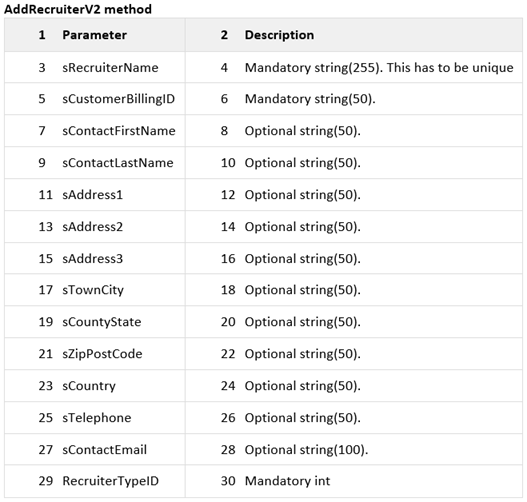
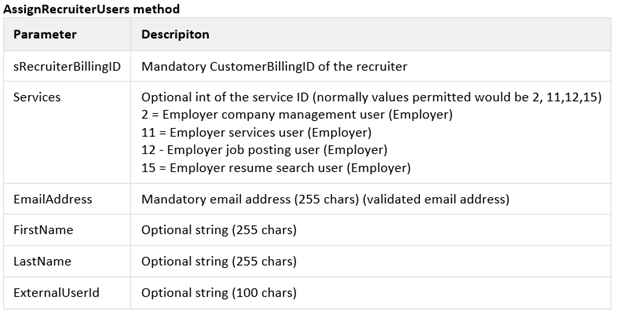
There are two steps that are required to add a recruiter to the SSO system via the Billing API:
- Create the recruiter using the following billing API method:
- AddRecruiterV2 method - please refer to image below of the same name.
- Assign a user to the recruiter using the following billing API method:
- AssignRecruiterUsers method - please refer to image below of the same name.
The important parts of these methods are:
- The sCustomerBillingID parameter passed in for the AddRecruiterV2 call. This is the customers reference and will be used in the AssignRecruiterUsers call
- The sRecruiterBillingID parameter passed into AssignRecruiterUsers – this is the sCustomerBillingID used to create the recruiter. The two parameters mentioned here (sRecruiterBillingID, sCustomerBillingID) are different names for the same thing
- The ExternalUserId parameter passed to AssignRecruiterUsers – this is the customers userId which we will use to link our user to their user. As previously mentioned, if the user doesn’t exist at the point of calling this method, they will be created. If they already exist, they will be updated and linked to the recruiter that has been passed in.
Option 2
If the call to the webservice option above is not carried out as described above before the user logs in, then a recruiter will be created for them upon login and will automatically be associated with the user. This recruiter will have no address details and will have the user's first and last name as the recruiter name. A custom company name may also be provided, but this name must be provided upon login.